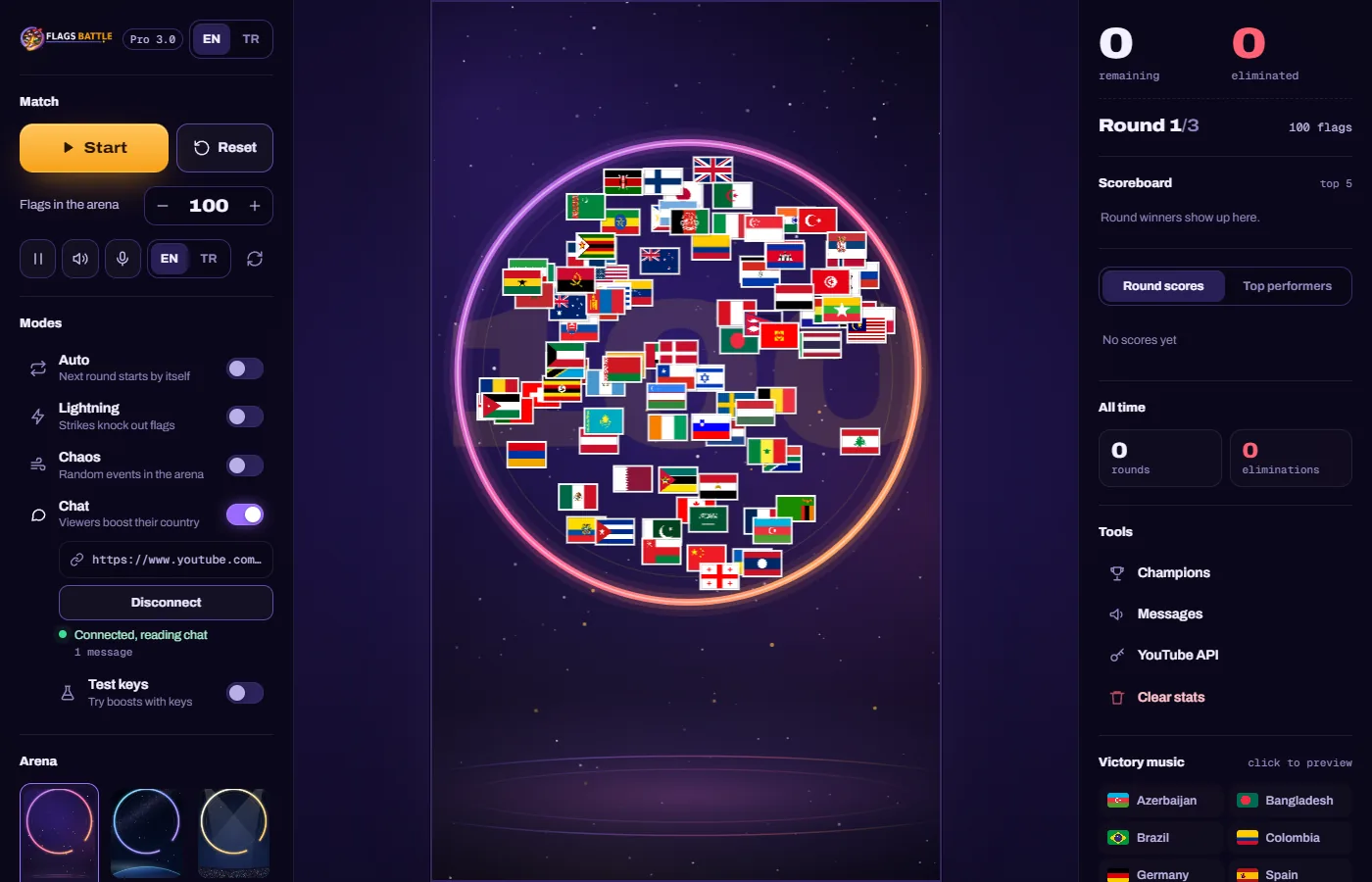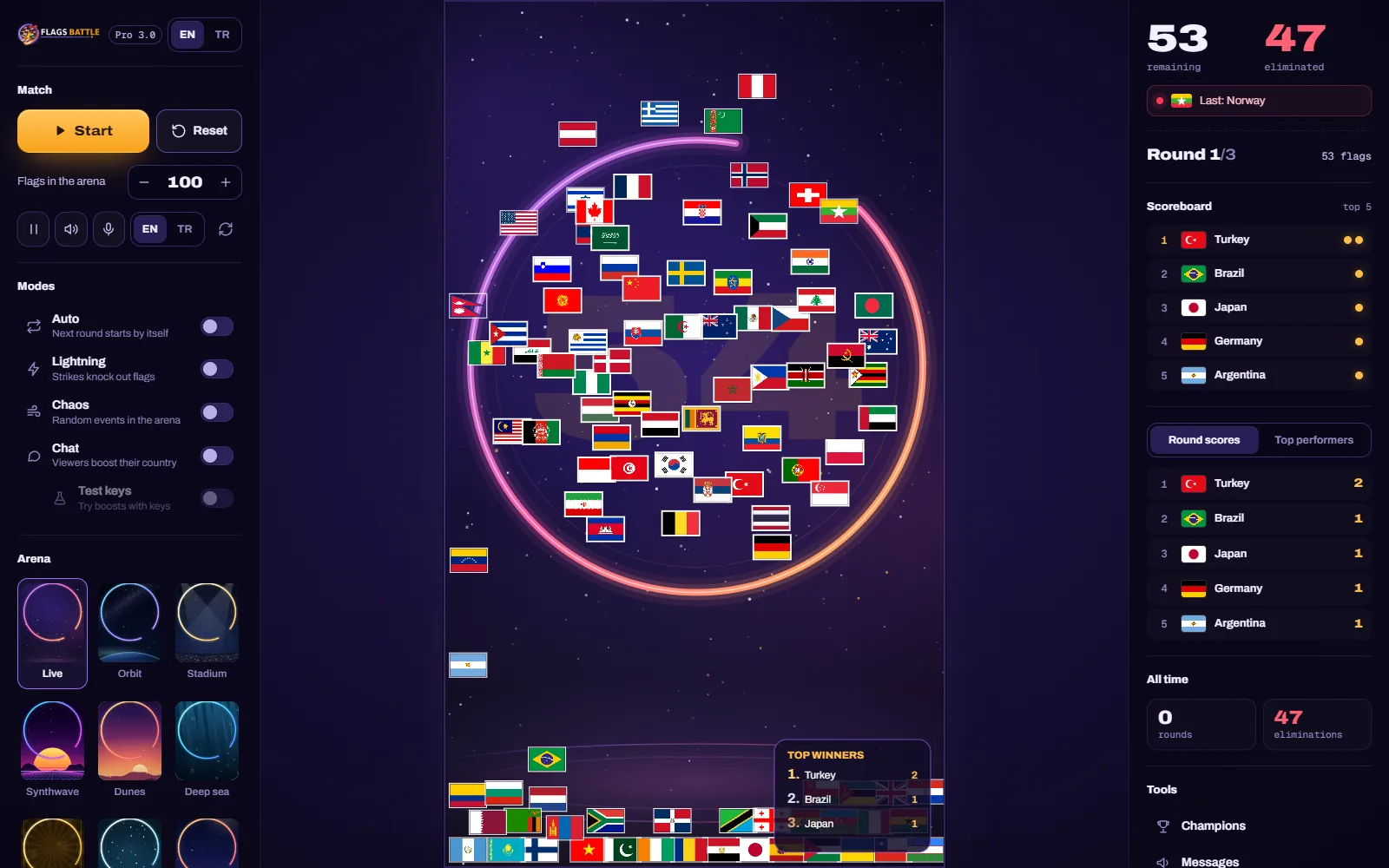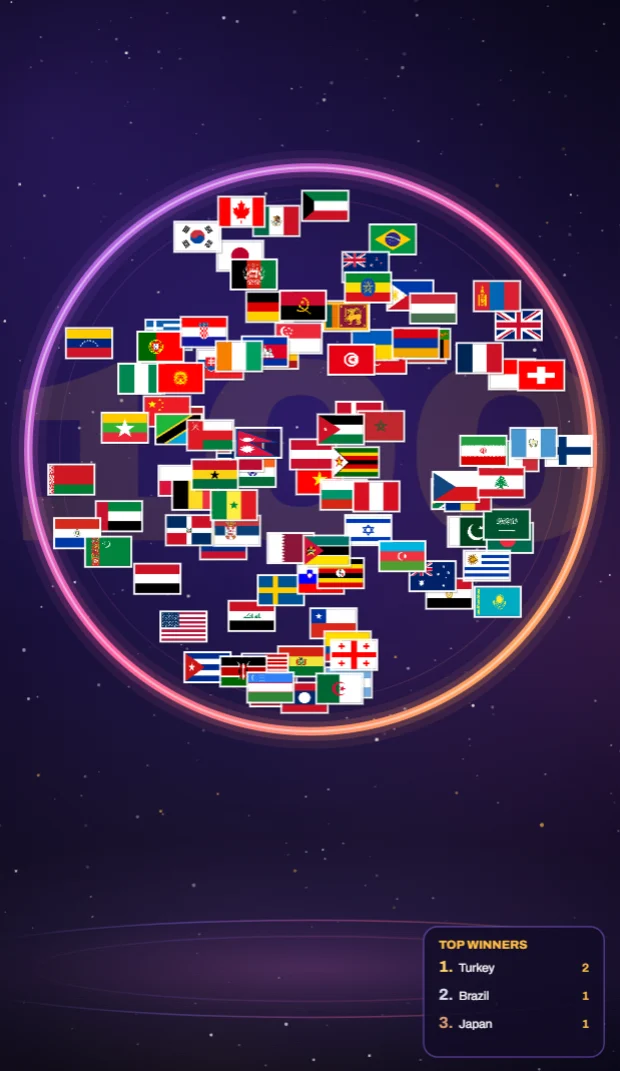
A live chat game has to read your stream's chat, message by message. YouTube offers that through the YouTube Data API v3, and every program that uses it identifies itself with an API key. The key is free. It belongs to you, it is tied to a Google Cloud project you own, and you can delete it at any time.
Do you need one?
Only if your viewers should play. FlagsBattle runs, and you can stream it, without a key: the rounds, the modes, the arenas, the announcer and the victory music all work on their own. The key connects your live chat to the game. With it, every flag emoji a viewer sends gives that country +1 support in the round, and supports earn shields: 10 supports bring 1 shield, 50 bring 2, 100 bring 3 and 500 bring 5. A shield saves a flag that falls through the gap. Supports and shields start again from zero every round.
Create the key (about five minutes)
- Open the Google Cloud Console and sign in with your Google account. Create a project; the name does not matter ("FlagsBattle" is fine). Check that the new project is selected at the top of the page.
- Open the API Library, choose YouTube Data API v3 and click Enable.
- Go to Credentials, click Create credentials and pick API key. Copy the key: it is a long line of letters and numbers that starts with
AIza. - Recommended: open the key, choose Restrict key under API restrictions and tick only YouTube Data API v3. A restricted key is useless for anything else if it ever leaks.
No credit card is needed for this. You are using the free daily quota every project gets.
Put it in the game
In FlagsBattle, open YouTube API (the key icon) under Tools in the right panel. Paste the key into the box, one key per line if you have more than one, and click Save & Apply, then Test Connection. The game remembers the key. The test sends one small request to YouTube and tells you what it found:
- Works: you are ready. When you go live, paste your stream's link into the box under the Chat switch in the left panel and click Connect (see the streamer guide).
- Not valid: the key was copied with a missing or extra character. Copy it again from Credentials.
- YouTube Data API v3 is not enabled: the key belongs to a project where you skipped step 2, or a different project is selected in the console.
- Restricted to other APIs: add YouTube Data API v3 to the key's API restrictions.
- Quota used up: the key works, but today's allowance is spent. See below.
How the daily quota works
Google gives each project a daily quota of request units for the YouTube Data API; the default for a new project is 10,000 units a day. Every time a game asks YouTube "any new chat messages?", it spends part of that allowance. A live chat game has to ask again and again, every few seconds, for as long as you are live, so the quota is spent by time on air, not by the number of viewers. With the default quota, that covers roughly one hour of live chat.
Two details are worth knowing:
- The quota resets at midnight Pacific Time (in Turkey that is 10:00 in summer and 11:00 in winter). If your quota runs out during a late stream, it comes back the next day at that hour, not at your midnight.
- A quiet chat costs the same as a busy one. The game is asking for messages either way. Clicking Disconnect, or turning the Chat switch off, when you take a break stops the reading and saves quota.
Need more than an hour a day?
There are two ways, and they are not equal.
Ask Google for a higher quota (the safe way). In the Cloud Console, YouTube offers an audit and quota extension form for the YouTube API Services. You describe what your app does (reading your own stream's public chat to run a game) and how many units you need. Answer honestly and specifically; approval can take some time, so ask before you need it.
Several keys. The YouTube API window takes more than one key, one per line. When a key's quota runs out during a stream, the game moves on to the next one by itself. The quota belongs to the project, not to the key, so a second key from the same project adds nothing: each key has to come from its own Google Cloud project. Know the risk before you do this. Google's YouTube API developer policies expect one project per app (section III.D.1), Google can suspend projects that break its policies, and after a suspension it does not allow new projects either. If you use several keys, that is your decision and your Google account.
Keep the key private
- Never show the API settings window on stream. Anyone who writes the key down can spend your quota.
- If a key leaks, delete it in Credentials and create a new one. It takes a minute and the old key stops working at once.
- Restricting the key to YouTube Data API v3 (step 4 above) limits the damage of a leak to that one API.
What the game reads, and what it does not
The key lets the game read the public chat of your live stream: the messages everyone watching can already see. It does not give access to your channel, your videos, your comments or your account, and it cannot post anything. That is also why a key is enough here and the game does not ask you to sign in to YouTube.